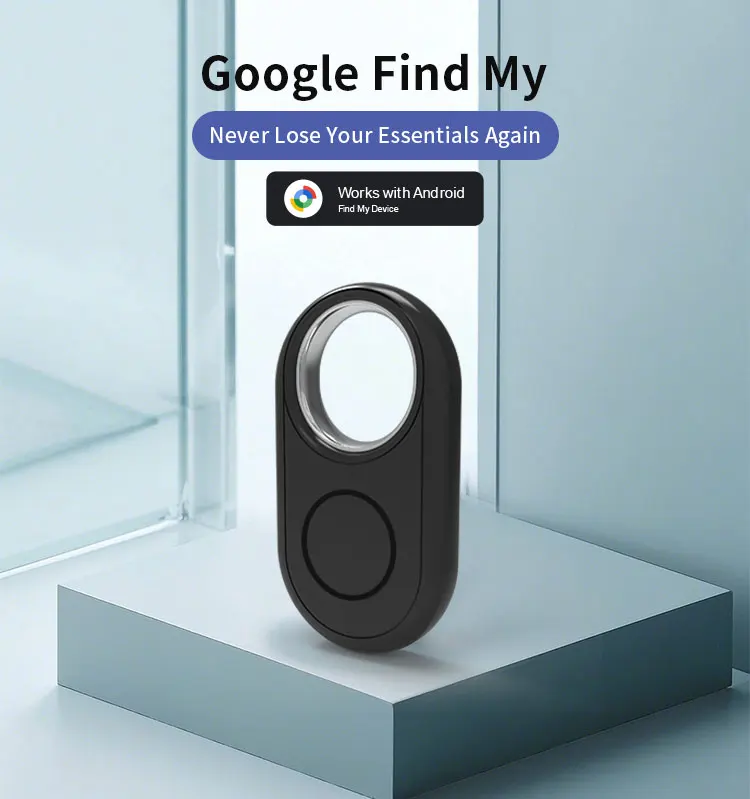
Long Distance Tracker for Samsung Device via Android Google Find Hub App Locator Finder Far Away Positioning Anti-lost Smart Tag
black
20,99 kr
Hopp til produktinformasjon


Long Distance Tracker for Samsung Device via Android Google Find Hub App Locator Finder Far Away Positioning Anti-lost Smart Tag
20,99 kr
Notice before purchase :
1.Make sure the Google LCC offer services (and updates) in the area you want to use the tracker ;
2.The Android devices need to be with 9.0 and above ,and the smart devices must download the newest Google's Find Hub App
Product technology:
Smart Tag based on Google – The intelligent, Android-friendly solution for seamless connectivity
Google-Backed Technology – Leveraging Google's trusted brand and innovation.
Smart Tag Feature – Enables quick and intelligent interactions.
Seamless Android Integration – Optimized for smooth compatibility with the Android ecosystem.
Efficient & Scalable – Supports a wide range of functions (implied by the extended numerical sequence).
Main Functions:
Quick Locating with Sound – Plays a sound to help you find items faster.
Long-Distance Tracking – Supports finding objects even from a distance.
Device Sharing Supported – Allows share it with 1 people and collaborate seamlessly.
Voice Command Display – Shows voice commands on your phone for easy operation.
Wide Compatibility – Works with most Android phones, including Xiaomi and Samsung.
Lightweight & Versatile – Compact and easy to carry, designed for everyday use
For certain Samsung models, there are connectivity issues. Please check the following points:
Three Core Permission Fixes (Samsung Galaxy Owners Must)
1. Activate Google Bluetooth scanning module in Galaxy Settings (core requirement);
2.Check device and sharing permissions for Google services;
3.Access Google Play Services, find the Nearby devices permission and set it to Allowed.